RealmManager
Dashboard
Each server has its own card showing whether it's online, who's playing and how long it has been running. You can start and stop it from there.

RealmManager is a free Windows app for setting up and running Minecraft Java servers. Everything is done through buttons and menus, so you don't need to use command lines or edit text files.
RealmManager takes care of setting up and looking after your server, so you can spend your time playing.
Each server has its own card showing whether it's online, who's playing and how long it has been running. You can start and stop it from there.
Choose Paper, Vanilla or Fabric and a Minecraft version. RealmManager downloads the server and picks the right Java version for you.
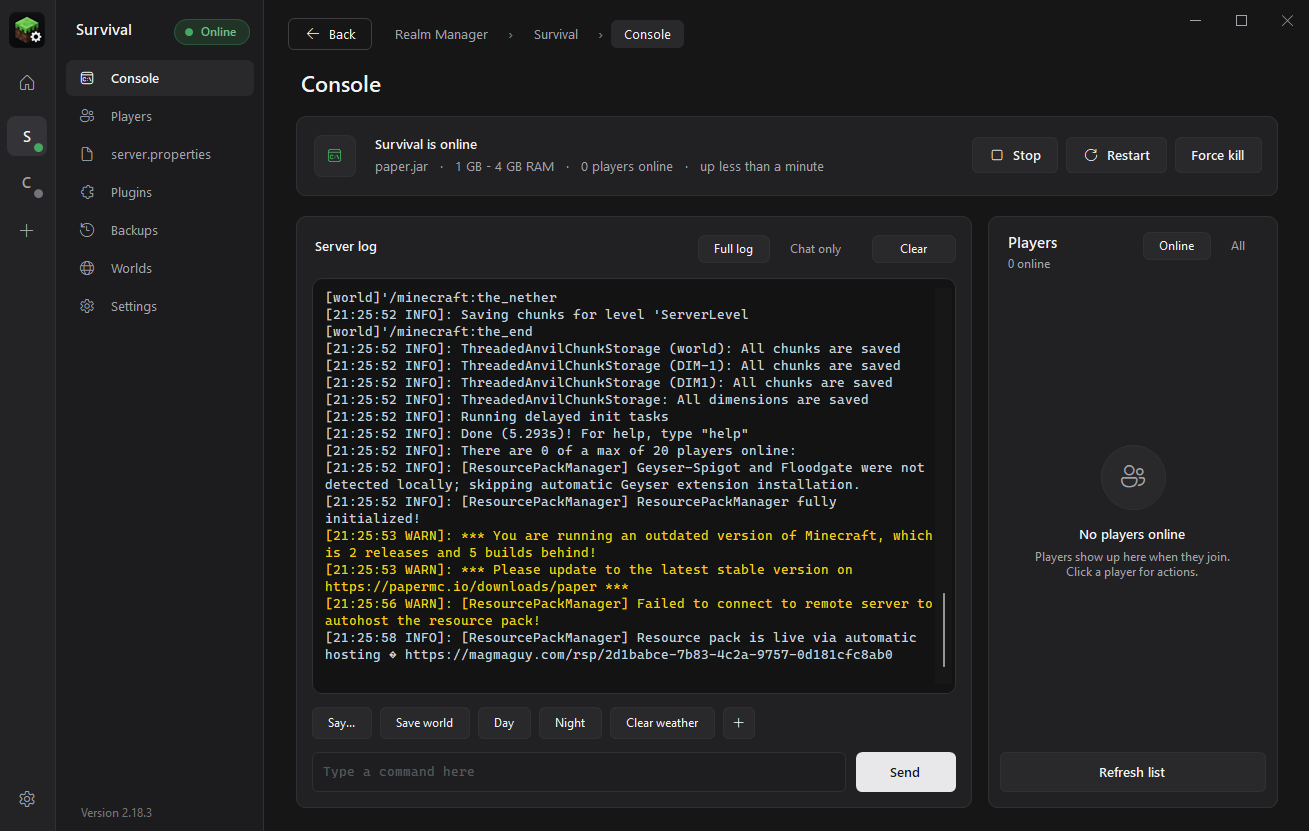
See what your server is doing as it happens, and type commands with suggestions as you type. There's also a view that shows only the chat.
See everyone who has joined your server and manage operators, the whitelist and bans. Right-click a player to give items, change their game mode or teleport them.
Change your server's settings with switches and drop-down menus, each with a short explanation, instead of editing server.properties by hand.
Turn plugins and mods on or off with a switch, add new ones, or remove ones you no longer need.
Back up your server automatically on a schedule and choose how many backups to keep. You can restore any of them with one click.
Switch between worlds, create a new world from a seed, or reset the Nether and the End without changing the Overworld.
If your server crashes or stops responding, RealmManager restarts it for you.
RealmManager can open when you sign in to Windows and start your servers automatically. You'll get a notification when something happens.
Change the text size, turn animations off, and set up the quick-action buttons the way you like.
RealmManager uses very little memory, so you can leave it open for weeks next to your servers.
A simple, dark design that fits in with Windows 11.
Follow what your server is doing, type commands and see who's online, all on one page.
Every jar in plugins/ or mods/ gets its own card.
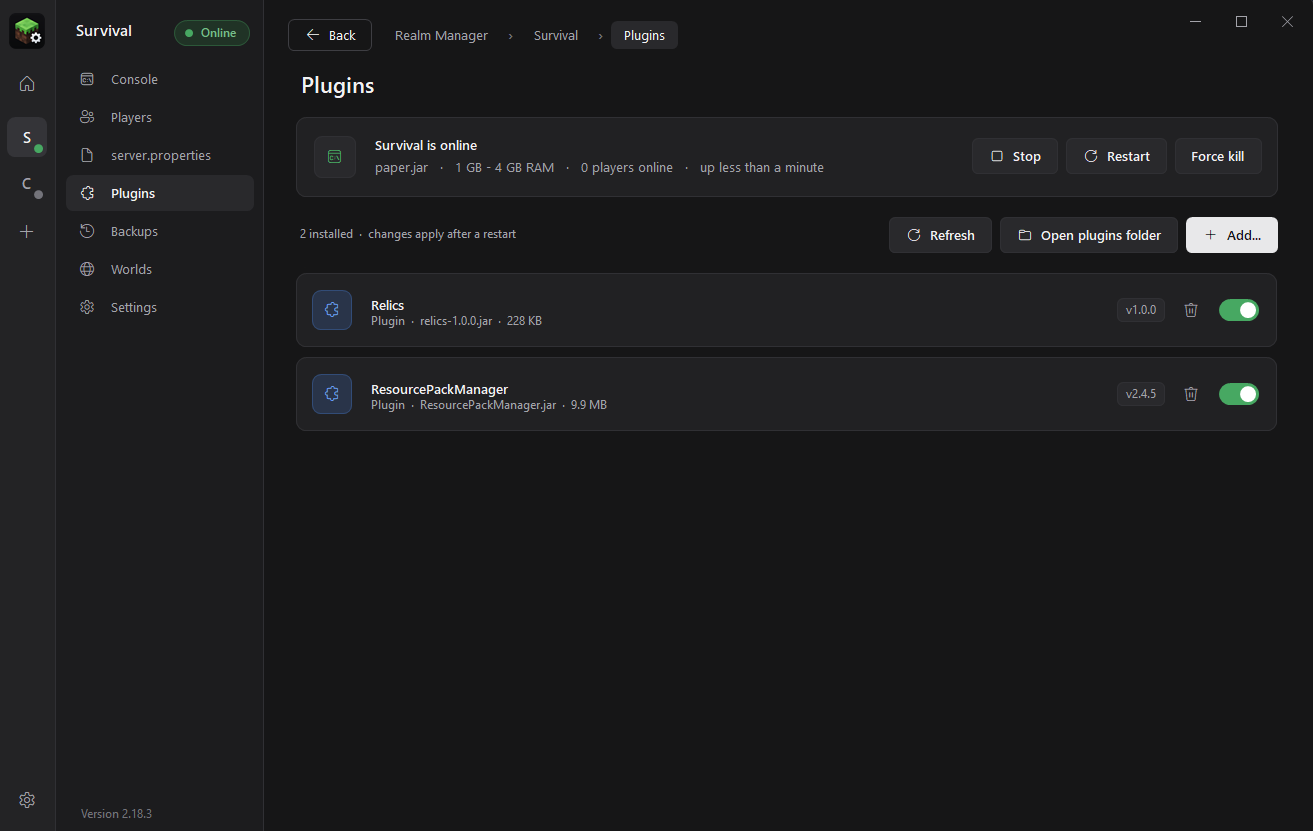
Players, server settings, backups and worlds each have their own page as well.
Download RealmManager, unzip it to a folder you like, and run RealmManager.exe. You don't need to install anything.
Click Add your first server, give it a name, then pick Paper, Vanilla or Fabric and a Minecraft version.
Tick the EULA box and click Create server. RealmManager downloads the server and picks a Java that fits.
Click Start, then join from Minecraft using the address localhost. Turn on Auto start if you want it to start by itself next time.
Already have a server? Open its Settings page in RealmManager and browse to your existing .jar. Paper, Spigot, Purpur, Vanilla and Fabric servers all work.
| Minecraft version | Java |
|---|---|
| 1.20.5 and newer | Java 21 |
| 1.18 – 1.20.4 | Java 17 |
| 1.17 | Java 16 |
| 1.16.5 and older | Java 8 |
RealmManager finds the Java versions you have installed (including the one that comes with the Minecraft Launcher) and picks the best match automatically.
Yes. It's free to download and use, with no account, ads or limits on how many servers you run.
No. RealmManager is made for Minecraft: Java Edition servers (Paper, Vanilla, Fabric, Spigot, Purpur and similar).
Yes. Add a server, open its Settings page and browse to your existing server .jar. The folder that contains the jar becomes the server folder, and your worlds, plugins and settings stay where they are.
Yes, as long as each server uses a different port (server-port in server.properties, which you can change in the built-in editor). The dashboard shows them all side by side.
On the same network, they can join using your PC's local IP address. To let friends join over the internet, forward the server's port (25565 by default) on your router, or use a tunnelling or VPN service you trust.
SmartScreen shows this warning for new apps from small developers that haven't built up a download history yet. If you downloaded RealmManager from this site, click More info → Run anyway.
New servers go in Documents\Minecraft Servers\<name> by default, or another folder you choose. RealmManager keeps its own settings in a few small files next to RealmManager.exe.
No. Removing a server only takes it out of RealmManager, and nothing on disk is deleted. Resetting or deleting a world always offers to make a backup first.
To update, download the new version and replace the old files, keeping your settings files in the folder. RealmManager can also check for updates from Settings → About. To uninstall, turn off Start with Windows and then delete the folder. Your servers stay where they are.